
Financial Services
Billing, subscriptions, project invoices, payment processing, and cross-module financial reporting.
Chapter 10 -- Financial / Invoicing
Overview
PROPMETRIK consolidates financial management across every module -- Billing & Subscriptions, Project Management invoices, Deal commissions, Valuation fee tracking, and Property Management rent collection -- into a unified set of financial tools. All values are denominated in Ghana Cedis (GHS / GH₵) by default, with multi-currency support for international transactions.
This chapter covers the six financial surfaces in the platform:
- Billing & Subscriptions -- your PROPMETRIK subscription and usage metering.
- Project Invoices -- construction project billing with draw schedules and pay applications.
- Project Financials -- budget vs. actual cost tracking with Xero sync.
- Valuation Finance -- fee schedules, billing for valuation assignments.
- Deal Financials -- commission payouts, revenue forecasting, payment configuration.
- Property Management Financials -- rent collection, arrears, landlord statements.
10.1 Billing & Subscriptions
Navigate to Dashboard > Billing to manage your PROPMETRIK subscription.
Current Plan
The top section displays your active subscription:
- Plan Name -- the tier you are on (Starter, Professional, Enterprise).
- Billing Interval -- monthly or annual.
- Price -- in GH₵ per month or per year.
- Status -- active, trial, past due, or cancelled.
- Current Period -- start and end dates of the current billing cycle.
- Trial -- if on a trial, the expiry date is shown.
Usage Metrics
A set of progress bars show how much of your plan limits you have consumed:
| Metric | Description |
|---|---|
| Users | Team members vs. plan limit |
| Properties | Managed properties vs. limit |
| Projects | Active construction projects vs. limit |
| Deals | Active CRM deals vs. limit |
| Valuations | Valuation reports created vs. limit |
| Storage | Document storage used vs. limit |
| API Calls | API requests this period vs. limit |
Each bar turns amber at 80% and red at 95% utilisation.
Add-ons
Optional modules that extend your plan:
- Extra user seats
- Additional storage
- Advanced analytics
- WhatsApp integration
- API access
To add or remove add-ons:
- Scroll to the Add-ons section.
- Click Manage next to the add-on.
- Adjust the quantity.
- Confirm the change -- billing is prorated.
Payment History
A table of past invoices with:
- Invoice date
- Amount in GH₵
- Status (Paid, Pending, Failed)
- Download link for receipt PDF
Payment Method
Configure your payment method:
- Paystack -- card payments via Paystack (the primary provider for Ghana).
- Bank Transfer -- manual bank transfer with reference number.
- Mobile Money -- MTN MoMo, Vodafone Cash, AirtelTigo Money.
10.2 Project Invoices
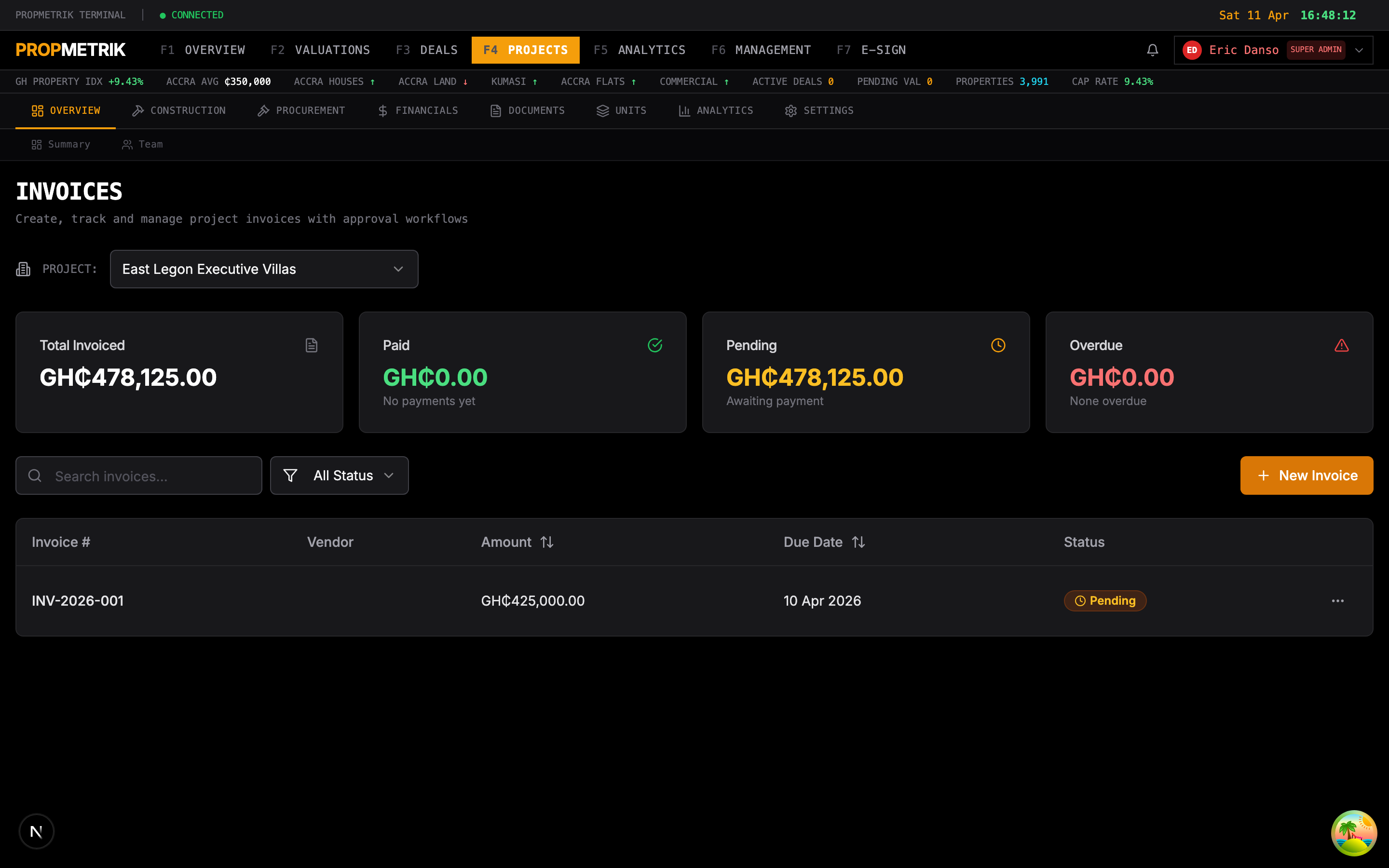
Navigate to Projects > Invoices or use the Invoice Builder for construction project billing.
Invoice List
The invoices page shows all project invoices with:
- Invoice number (auto-generated sequence)
- Project name
- Client / contractor name
- Amount in GH₵
- Status badge (Draft, Sent, Partially Paid, Paid, Overdue, Voided)
- Due date
- Payment reference (Paystack reference if paid online)
Creating an Invoice
- Click + New Invoice or navigate to Projects > Invoice Builder.
- Select the Project from the dropdown.
- Choose the Invoice Type:
- Progress Payment -- based on percentage of work completed.
- Milestone Payment -- tied to a specific project milestone.
- Retention Release -- release of held-back retention funds.
- Variation / Change Order -- additional work outside original scope.
- Final Account -- closing invoice for project completion.
- Add Line Items:
- Description of work
- Quantity
- Unit price
- Amount (auto-calculated)
- Apply Retention (typically 5--10% withheld until defects liability period).
- Add Taxes (VAT, NHIL, COVID levy as applicable in Ghana).
- Set the Due Date.
- Add Notes or terms.
- Click Save as Draft or Send to dispatch to the client.
Invoice Actions
| Action | Description |
|---|---|
| Edit | Modify a draft invoice |
| Send | Email the invoice to the client |
| Record Payment | Log a manual payment received |
| Download PDF | Export the invoice as a PDF |
| Void | Cancel the invoice |
| Duplicate | Create a copy for the next billing period |
Draw Schedule / Pay Applications
For construction projects, the draw schedule tracks planned disbursements against actual payments:
- Navigate to Projects > [Project] > Draws / Pay Apps.
- View the schedule of planned draws aligned to construction phases.
- Submit a Pay Application for each draw:
- Current work completed this period
- Materials stored on site
- Less retention
- Less previous payments
- Net amount due
- The client reviews and approves or rejects the application.
- Approved amounts become payable invoices.
Tip: Link invoices to Change Orders so you can trace every billing item back to its authorisation.
10.3 Project Financials
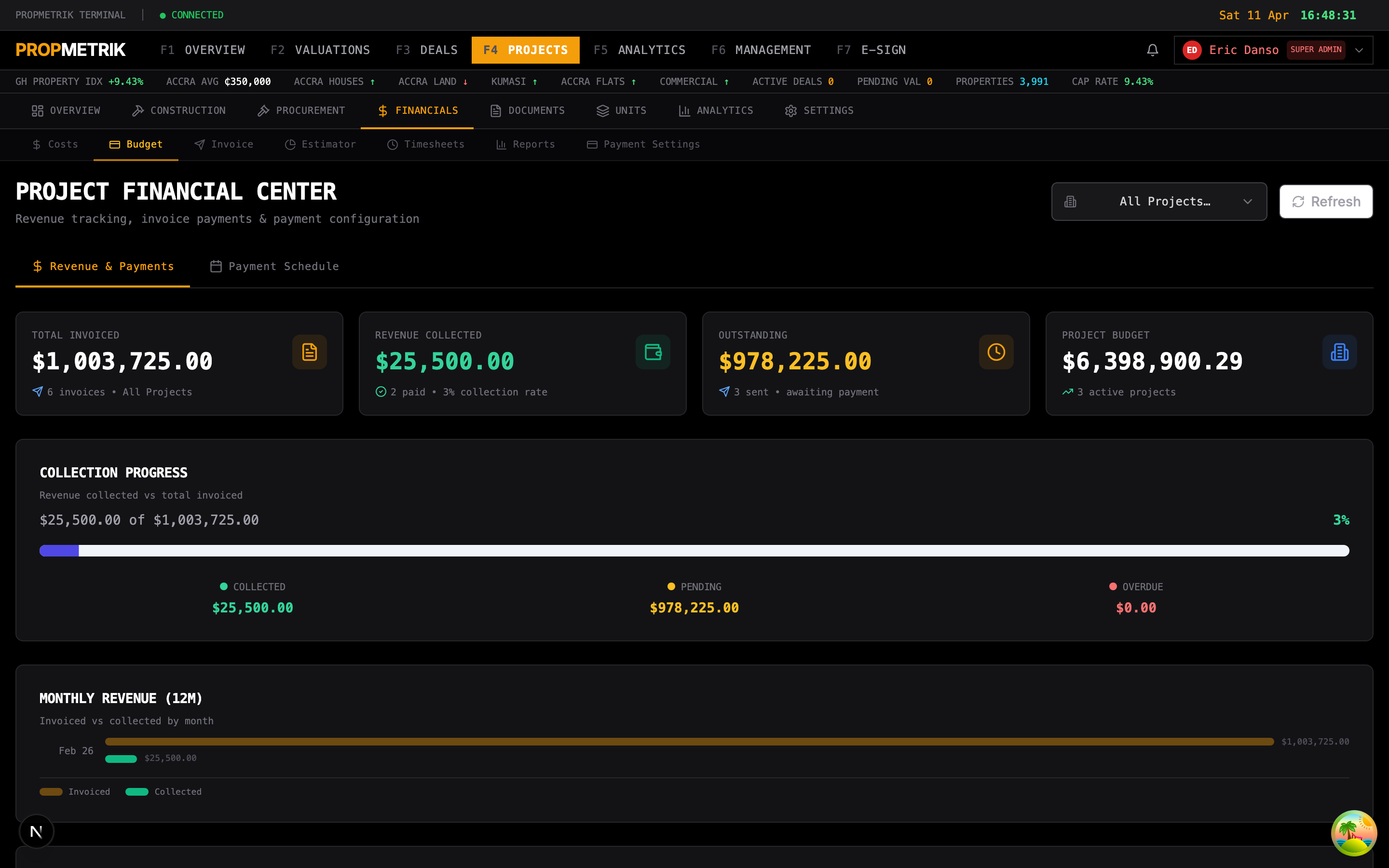
Navigate to Projects > Financials or open a specific project and go to Budget & Cost.
Budget vs. Actual
The financials dashboard provides a real-time view of project financial health:
- Original Budget -- the initial approved budget.
- Revised Budget -- budget after approved change orders.
- Committed Costs -- purchase orders and subcontracts issued.
- Actual Costs -- invoices received and payments made.
- Variance -- difference between budget and actual (green = under, red = over).
- % Complete -- financial percentage complete.
- Estimated at Completion (EAC) -- projected total cost.
- Estimate to Complete (ETC) -- remaining costs.
Cost Categories
Costs are broken down by category:
| Category | Examples |
|---|---|
| Materials | Cement, steel, timber, sand, tiles |
| Labour | Skilled and unskilled labour, overtime |
| Equipment | Crane hire, scaffolding, tools |
| Subcontractors | Electrical, plumbing, painting |
| Professional Fees | Architect, engineer, surveyor |
| Permits & Fees | Building permits, utility connections |
| Overhead | Site office, insurance, security |
| Contingency | Risk allowance |
Adding a Cost
- Click + Add Cost.
- Select the Cost Category from the dropdown.
- Enter the Description, Vendor, Amount, and Date.
- Attach a receipt or invoice document (optional).
- Click Save.
Xero Integration
PROPMETRIK syncs project costs with Xero accounting software:
- Navigate to Projects > Integrations or the Xero settings panel.
- Click Connect to Xero to start the OAuth2 flow.
- Authorise PROPMETRIK to access your Xero organisation.
- Once connected, you can:
- Sync Costs -- push project costs to Xero as bills or invoices.
- Map Contacts -- link PROPMETRIK vendors to Xero contacts.
- Track Status -- see sync status with timestamps and error logs.
Each cost record shows a Xero sync badge indicating whether it has been synced, is pending, or failed.
Tip: Set up automatic sync to push new costs to Xero daily, reducing manual data entry and ensuring your accounting records stay current.
10.4 Valuation Finance
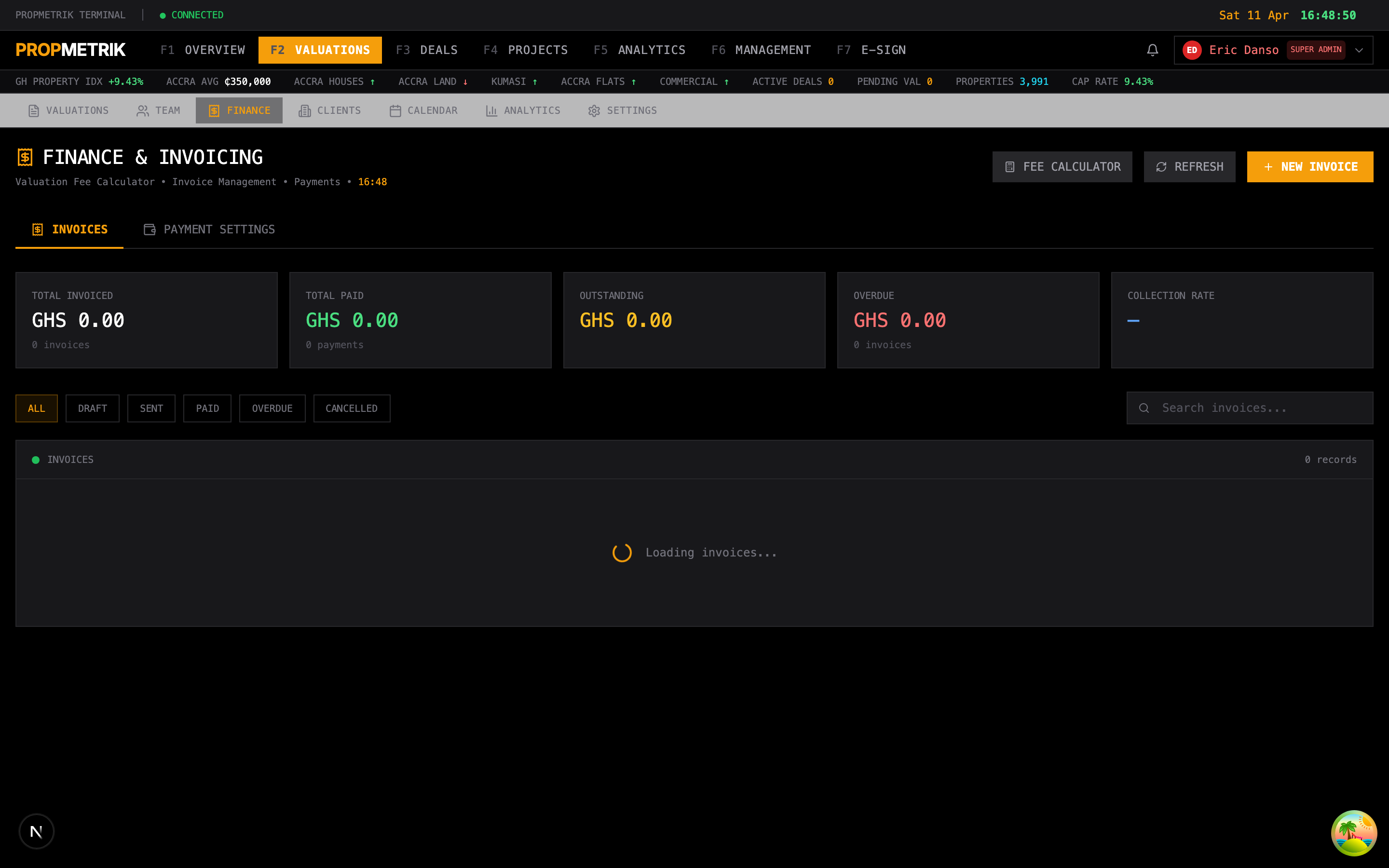
Financial tracking for valuation assignments and fee billing.
Fee Schedules
Configure fee schedules based on property type and valuation purpose:
| Property Type | Market Value | Insurance | Mortgage | Rent Review |
|---|---|---|---|---|
| Residential | GH₵ 2,500 | GH₵ 1,800 | GH₵ 2,000 | GH₵ 1,500 |
| Commercial | GH₵ 5,000 | GH₵ 3,500 | GH₵ 4,000 | GH₵ 3,000 |
| Industrial | GH₵ 8,000 | GH₵ 6,000 | GH₵ 7,000 | GH₵ 5,000 |
| Land | GH₵ 3,000 | -- | GH₵ 2,500 | -- |
Fees are guidelines -- you can override them per assignment.
Billing a Valuation
- Open a valuation report.
- Navigate to the Finance tab.
- The system pre-fills the fee based on property type and purpose.
- Adjust the fee if needed (discounts, complexity surcharges).
- Click Generate Invoice to create a billing record.
- The invoice can be sent to the client via email or printed.
Revenue Tracking
The valuation finance dashboard shows:
- Total revenue this month/quarter/year
- Revenue by valuer (performance leaderboard)
- Outstanding fees (unpaid invoices)
- Fee collection rate (percentage of billed fees collected)
- Revenue trend chart
10.5 Deal Financials
Navigate to Deals > Financials for the CRM financial centre.
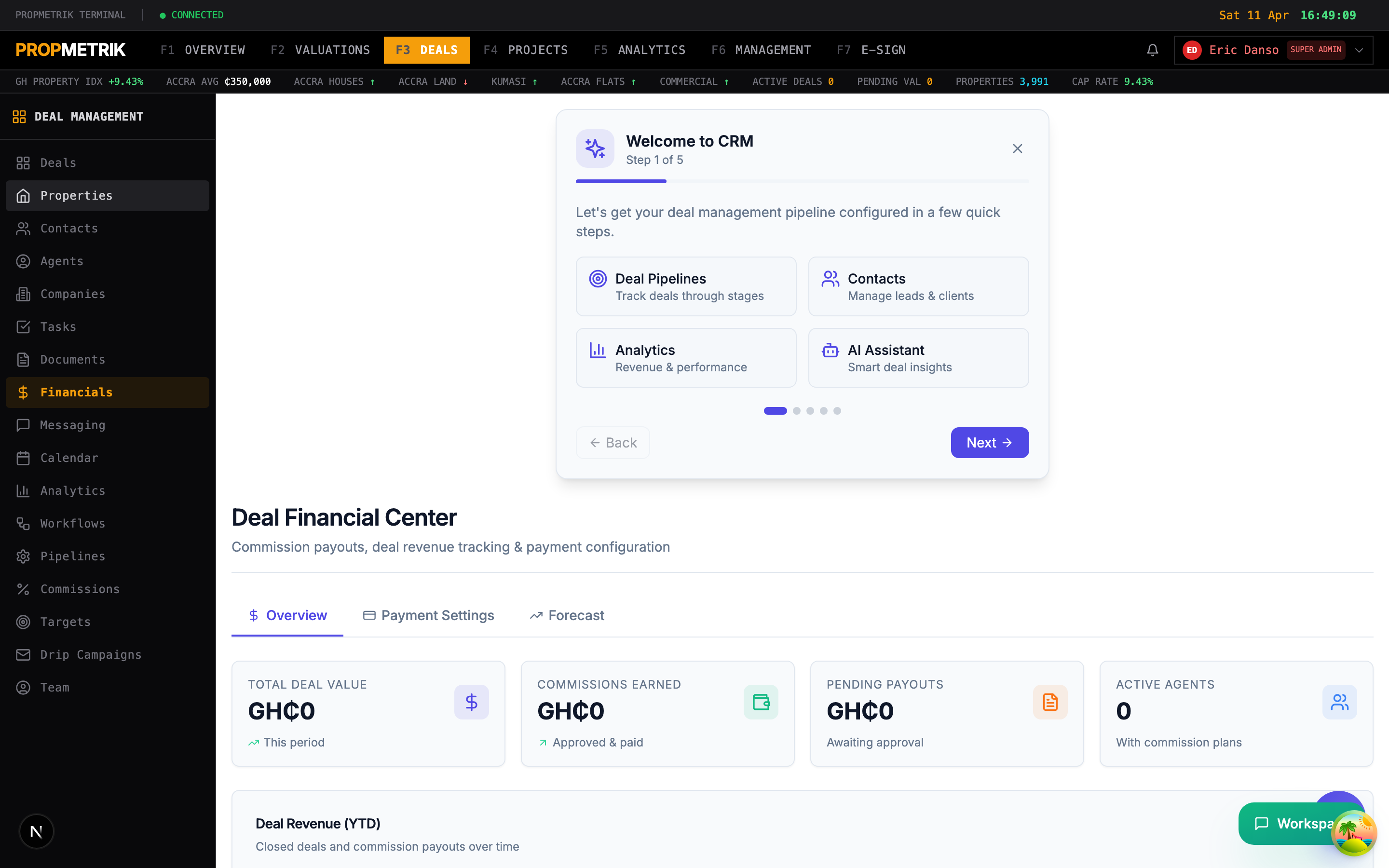
Overview Tab
Summary cards show:
- Total Pipeline Value -- sum of all active deal values.
- Won Revenue -- closed-won deal values for the period.
- Pending Commissions -- commissions calculated but not yet paid.
- Paid Commissions -- commissions disbursed to agents.
Below the cards, a revenue breakdown chart shows deal value by:
- Deal type (Sale, Rental, Development)
- Pipeline stage
- Agent
- Time period
Payment Settings Tab
Configure how commissions and deal-related payments are processed:
- Select the Payment Provider:
- Paystack (automatic card/mobile money payouts)
- Bank Transfer (manual processing)
- Set Payout Frequency: weekly, bi-weekly, or monthly.
- Configure Approval Workflow: require manager approval before payout, or auto-approve.
- Set Commission Calculation Rules:
- When to calculate (on deal won, on payment received, manual)
- Default split percentages
- Tiered commission structures (higher rates for higher deal values)
Forecast Tab
The AI-powered Revenue Forecaster uses your pipeline data to project future revenue:
- Weighted Pipeline -- deal values multiplied by stage probabilities.
- Monthly Forecast -- expected closings per month based on deal velocity.
- Best / Worst / Expected Cases -- three scenario projections.
- Confidence Interval -- statistical range for the forecast.
The forecaster accounts for:
- Historical conversion rates by stage
- Average deal cycle length
- Seasonal patterns in the Ghanaian real estate market
- Agent-specific performance trends
Tip: Keep your pipeline stages' probability percentages accurate -- they directly feed the revenue forecasting model.
10.6 Property Management Financials
Navigate to Property Management > Financials for rent collection and landlord accounting.
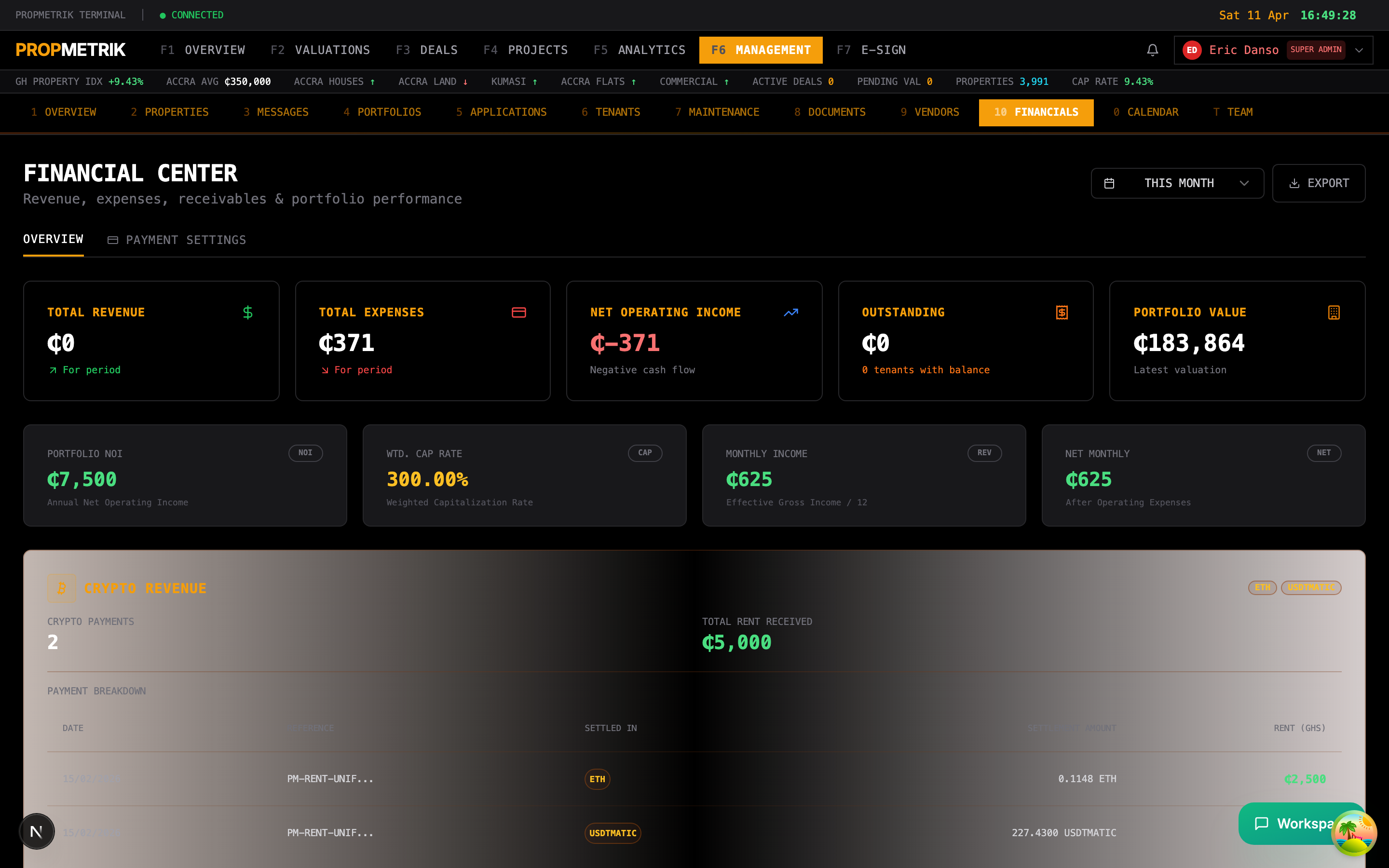
Rent Collection Dashboard
- Expected Rent -- total rent due this month across all managed properties.
- Collected -- rent received to date.
- Outstanding -- unpaid rent (arrears).
- Collection Rate -- percentage of expected rent collected.
- Advance Payments -- rent paid ahead of schedule.
Arrears Management
A table of overdue rent payments with:
- Tenant name and unit
- Amount overdue
- Days overdue
- Last payment date
- Contact information
- Action buttons: Send Reminder, Record Payment, Escalate
To send a rent reminder:
- Select one or more tenants with arrears.
- Click Send Reminder.
- Choose the communication channel: Email, SMS, or WhatsApp.
- Review the auto-generated reminder message.
- Click Send.
Landlord Statements
Generate monthly or periodic financial statements for property owners:
- Select the Property and Period.
- The system compiles:
- Gross rent collected
- Less management fees
- Less maintenance expenses
- Less any other deductions
- Net amount due to landlord
- Click Generate Statement to create a PDF.
- Click Send to Landlord to email the statement.
Payment Recording
To record a rent payment:
- Navigate to the tenant's lease or the arrears list.
- Click Record Payment.
- Enter:
- Amount received
- Payment date
- Payment method (Cash, Bank Transfer, Mobile Money, Cheque)
- Reference number
- Click Save.
- The tenant's balance updates automatically.
Rent Receipts
After recording a payment, you can generate and send a rent receipt:
- Click Generate Receipt on the payment record.
- The receipt includes: tenant name, property, amount, date, method, and receipt number.
- Click Send to email or WhatsApp the receipt to the tenant.
10.7 Financial Reports
Across all modules, PROPMETRIK provides exportable financial reports:
| Report | Module | Description |
|---|---|---|
| Profit & Loss | Projects | Revenue vs. costs for a project |
| Cash Flow | Projects | Inflows and outflows by period |
| Aged Receivables | PM / Deals | Outstanding invoices by age bracket |
| Commission Statement | Deals | Agent commission summary for a period |
| Landlord Statement | PM | Net income statement for property owners |
| Fee Revenue | Valuations | Valuation fees billed and collected |
| Budget Variance | Projects | Budget vs. actual with variance analysis |
| Tax Summary | All | VAT, NHIL, and levy summary for filing |
Exporting
All financial tables and reports support:
- CSV Export -- for spreadsheet analysis.
- PDF Export -- for client or management reporting.
- Xero Sync -- for accounting integration (project costs).
Tip: Schedule monthly financial reports using the Workflow automation to have them emailed to stakeholders on the first of each month.
Summary
PROPMETRIK's financial tools cover the entire lifecycle of real estate finance in Ghana -- from subscription billing and project cost management to agent commissions and rent collection. The Xero integration bridges the gap between operational and accounting systems, while the AI-powered revenue forecaster helps you plan with confidence.